
Subscribe to AppGini tips and tutorials using your favorite RSS news reader by clicking the link to the right.
Read more AppGini tips and tutorials

Working with filters programatically, part 1

This is a multi-part tutorial on how to use filters in AppGini. Filters are a powerful means of searching tables. This tutorial explains how they work, and shows how they can be controlled programatically. In part 1, we'll understand how to apply a default filter to a table.

What this tutorial is and is not

This tutorial is a coding tutorial. You'll learn here how to program filters into pages. We'll write some html and php code to achieve this. If you're looking for a tutorial on how to use the filters page to perform a search, please refer to the section working with filters of the online help.

Filters work in groups

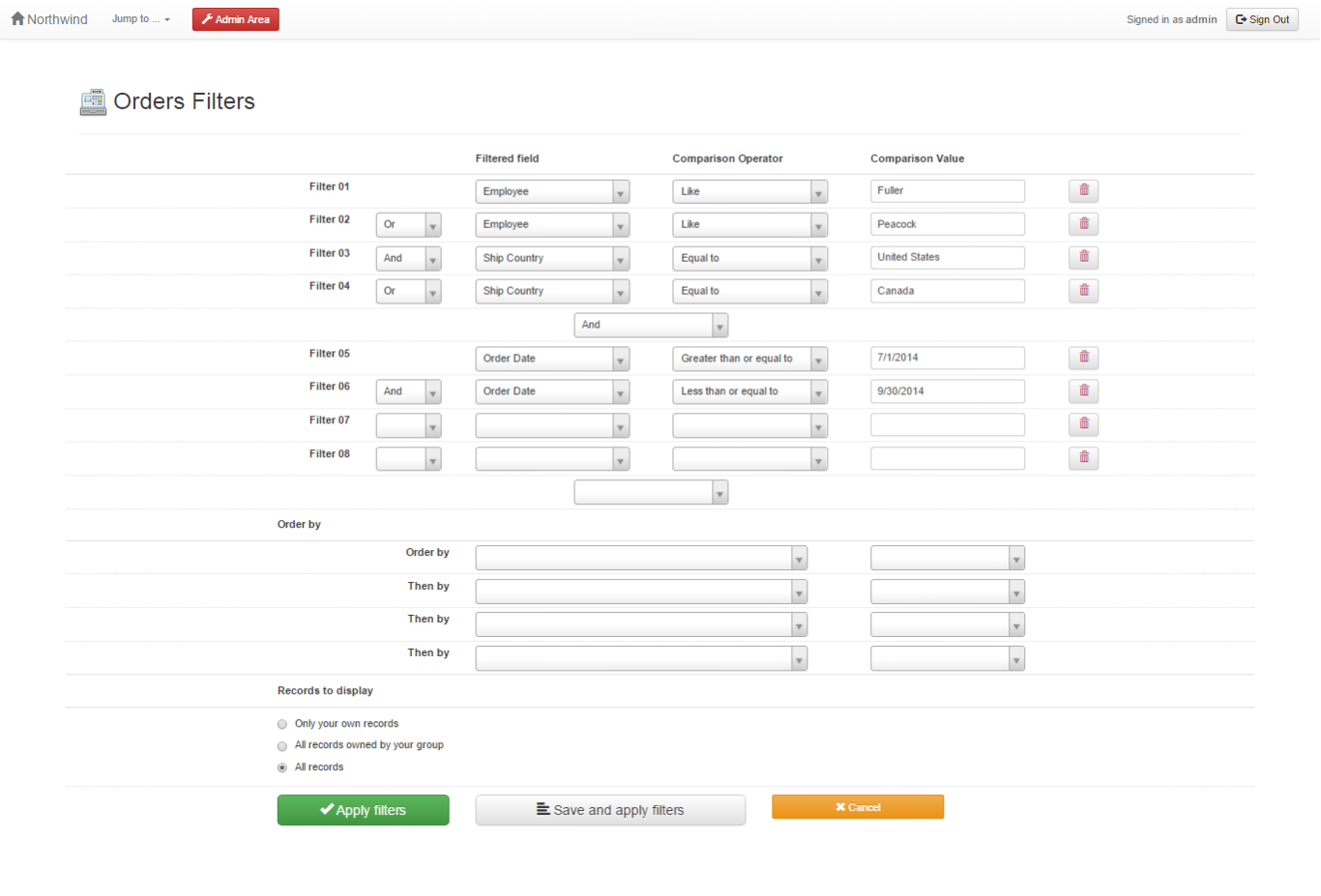
AppGini supports up to 80 filters grouped into 20 groups. The filters page exposes only 12 filters grouped into 3 groups. But this is still enough to create complex searches. For example, the filters defined in the screenshot to the right create a sophisticated search of the orders table in the Northwind online demo. Here is a quick preview of the filters page in action (click the "Apply Filters" button to view the filtered orders.)

So, for the example filters to the right, the generated SQL query would be structured like this:

( Filter01 OR Filter02 ) AND (Filter05 OR Filter06) AND (Filter09 AND Filter10)


Filter variables

The filters form in AppGini passes several variables to the application that define filters. If we understand these variables, we'll be able to create default filters, enforce a filter on pages, build customized search forms, ... etc.

Each filter has an index that identifies it. The first filter has an index of 1, the second one has an index of 2, and so on. We could define up to 80 filters (but that would really slow down our queries). Each filter is composed of 4 variables, as outlined in the table below.
Variable name in HTML Variable name in PHP Possible values Details
FilterAnd[i] $_POST['FilterAnd'][i]
$_GET['FilterAnd'][i]
and
or
Specifies how this filter is combined with the previous one. For the first filter (i=1), there is no need to specify a value for this variable.
FilterField[i] $_POST['FilterField'][i]
$_GET['FilterField'][i]
1, 2, 3, .. etc. Specifies which field in the table is to be filtered. The first field of the table (as defined in your AppGini project) is 1, the second is 2, ... etc.

FilterOperator[i]

$_POST['FilterOperator'][i]
$_GET['FilterOperator'][i]
<=>
!=
>
>=
<
<=
like
not like
isEmpty
isNotEmpty

Specifies how to treat the FilterValue. For example, setting FilterOperator to >= will match all records where the filtered field is greater than or equal to the value specified in FilterValue
FilterValue[i] $_POST['FilterValue'][i]
$_GET['FilterValue'][i]
Any value we're looking for
Where i is the index of the concerned filter, a value from 1 to 80.

Implementing filters in the generated code

In many AppGini applications, we'd like users to view only a subset of data rather than viewing all the records of a table. For example, in orders table, we might want users to view the orders as of 1/1/2009 only. To do so, we'd write the PHP code for filtering the orders table by date as follows.
/* filter 1 code*/
	/* let's assume the date field is the fourth field in the orders table*/
	$_POST['FilterField'][1]=4;
	$_POST['FilterOperator'][1]='>=';
	$_POST['FilterValue'][1]='1/1/2009';
So, the above code limits the orders table list only orders dating 1/1/2009 or newer. Now, where should this code be placed? It should be placed in the generated "tablename_view.php" file before the include lines, where tablename is the name of the concerned table. For our example, the file would be named "orders_view.php". So, the code in the file would look like this:
<?php
// This script and data application were generated by AppGini 4.45
// Download AppGini for free from http://www.bigprof.com/appgini/download/

/* filter 1 */
	/* let's assume the date field is the fourth field in the orders table*/
	$_POST['FilterField'][1]=4;
	$_POST['FilterOperator'][1]='>=';
	$_POST['FilterValue'][1]='1/1/2009';
/* end of filter 1 code*/

	include(dirname(__FILE__)."/defaultLang.php");
	include(dirname(__FILE__)."/language.php");

	/* rest of the code of the file ... */
The above code would work only if the page was requested using the POST method. It won't work with the GET method. So, we should modify the code to support both methods [1].
if($_SERVER['REQUEST_METHOD']=='POST'){
	/* filter 1 if POST method is used */
		$_POST['FilterField'][1]=4;
		$_POST['FilterOperator'][1]='>=';
		$_POST['FilterValue'][1]='1/1/2009';
}else{
	/* filter 1 if GET methos is used */
		$_GET['FilterField'][1]=4;
		$_GET['FilterOperator'][1]='>=';
		$_GET['FilterValue'][1]='1/1/2009';
}


Using multiple filters

Let's say we want to filter orders to display only the orders of January 2009. In this case, we'll add another filter to our code to limit orders to the period from 1/1/2009 to 1/31/2009 [2].
if($_SERVER['REQUEST_METHOD']=='POST'){
	/* filter 1 */
		$_POST['FilterField'][1]=4;
		$_POST['FilterOperator'][1]='>=';
		$_POST['FilterValue'][1]='1/1/2009';
	/* filter 2 */
		/* for filters 2 and up, you must specify the value of FilterAnd */
		$_POST['FilterAnd'][2]='and';
		$_POST['FilterField'][2]=4;
		$_POST['FilterOperator'][2]='<=';
		$_POST['FilterValue'][2]='1/31/2009';
}else{
	/* filter 1 */
		$_GET['FilterField'][1]=4;
		$_GET['FilterOperator'][1]='>=';
		$_GET['FilterValue'][1]='1/1/2009'; 
	/* filter 2 */
		$_GET['FilterAnd'][2]='and';
		$_GET['FilterField'][2]=4;
		$_GET['FilterOperator'][2]='<=';
		$_GET['FilterValue'][2]='1/31/2009'; 
}
We've now finished part 1 of this tutorial. We've learnt how to enforce a filter on users when they view a certain table. In the next part of this series, we'll learn how to further customize the enforced filters.

Related pages

Creating a customized search form


[1] For the purposes of this tutorial, you don't have to learn the details of POST and GET requests. But here is a link for more details if you like.

[2] In this tutorial, I'm assuming the date format specified in your AppGini project is "Month, day, year" with a Slash separator. If you're using a different format, you should change the code above to reflect that format.